


Arena Breakout Infinite Best Settings for Low-End PC: FPS Guide

2026-07-06 11:06:34

You launched ABI on your budget gaming laptop. Fifteen frames per second. Unplayable.
The game lists a GTX 960 as the minimum requirement. Realistically, a GTX 1050 or equivalent is where performance becomes tolerable. But even older hardware can run ABI at 60 FPS with the right settings. Here is the exact configuration.
👇 Need more Bonds? Top up Arena Breakout Infinite on TOPUPlive
【Save with coupon code: topupliveblog】


100 Bonds


Klukai Guarantee Bundle
Leva Guarantee Bundle
Sangvis Ferri Bundle
▍Optimal Graphics Settings for Low-End PCs
Apply these settings in Display → Graphics:
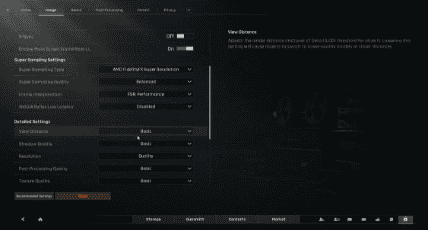
Setting | Value | Why |
Resolution | 1600×900 or native | Dropping resolution gives the biggest FPS boost. 900p is the sweet spot for low-end hardware. |
Display Mode | Fullscreen | Windowed mode costs 5-10 FPS. Always run fullscreen. |
Frame Rate Cap | Uncapped or 60 | Capping at 60 prevents unnecessary GPU load if your hardware cannot push higher. |
V-Sync | Off | Adds input lag and costs FPS. Keep it off. |
Graphics Quality | Custom | Presets are too aggressive. Manual tuning beats every preset. |
Texture Quality | Low | Textures eat VRAM. If you have 2GB VRAM, low is non-negotiable. 4GB VRAM allows medium. |
Shadow Quality | Off | Shadows cost 15-20% of your frame budget. Turn them off completely on low-end hardware. |
Anti-Aliasing | Off or FXAA | TAA blurs the image and costs FPS. FXAA is the lightest option. |
Post Processing | Off | Motion blur, bloom, and depth of field add visual noise. Zero competitive advantage. Turn them all off. |
View Distance | Low | High view distance loads more assets. Low sacrifices long-range detail for FPS. |
Foliage Quality | Low | Grass and trees cost frames. Low foliage also reduces visual clutter for spotting enemies. |
Ambient Occlusion | Off | Heavy GPU cost with no competitive benefit. Always off. |
▍Engine.ini Tweaks for Extra Performance
Navigate to %LOCALAPPDATA%\ABInfinite\Saved\Config\WindowsNoEditor\Engine.ini and add these lines at the bottom:
[SystemSettings]
r.Streaming.PoolSize=0
r.Streaming.LimitPoolSizeToVRAM=1
r.DefaultFeature.MotionBlur=0
r.DefaultFeature.Bloom=0
r.DefaultFeature.LensFlare=0
r.ShadowQuality=0
r.Shadow.MaxResolution=32
These commands disable engine-level effects that the in-game menu cannot reach. The pool size tweak prevents VRAM overflow crashes on low-end cards.
▍Launch Options for Steam Users
Right-click ABI in Steam → Properties → General → Launch Options:
-high -no-browser -USEALLAVAILABLECORES
- -high: Sets CPU priority to high in Windows task scheduler
- -no-browser: Disables the in-game overlay browser
- -USEALLAVAILABLECORES: Forces the game to utilize all CPU threads
▍Hardware-Specific Recommendations
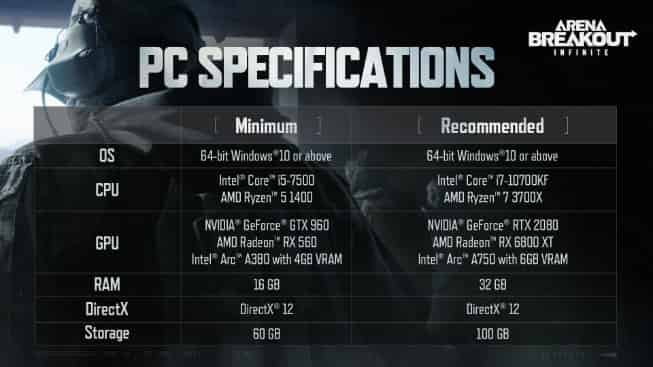
GTX 1050 / GTX 1050 Ti (2-4GB VRAM):
Run at 1600×900, all settings low, shadows off. Target: 45-55 FPS on Farm. Armory may dip to 35 FPS during firefights.
GTX 1650 / RX 570 (4GB VRAM):
Run at 1920×1080, textures medium, everything else low. Target: 55-65 FPS across all maps.
Integrated Graphics (Intel UHD / Vega):
720p resolution, minimum settings, FSR enabled if available. Target: 30-40 FPS. The game remains playable but choppy. A dedicated GPU upgrade is strongly recommended.
▍FAQ
Q: Will lowering graphics settings make enemies harder to see?
A: Lowering shadows and foliage actually improves visibility. You see enemies through grass that high settings would hide. Low settings give a competitive edge, not a disadvantage.
Q: How do I check my FPS in-game?
A: Steam overlay (Shift+Tab → Settings → In-Game → FPS counter) or enable the in-game performance display under Settings → Gameplay → Show FPS.
Ready to gear up? Head to TOPUPlive for fast, discounted Arena Breakout Bonds top-up and enjoy more raids with premium advantages. Play smart and extract safely!

Paisley Miller
game writer
I focus on writing guides, tips, and strategy content for popular games. As an active player , I enjoy exploring updates, understanding mechanics, and turning that experience into clear, practical insights for other players.
Related products
Related News

Last War Survival Top Up: Best Way to Buy Packs, Diamonds, and Gift Codes
Last War Gold Bricks Guide: How to Get, Use, and Buy Gold Bricks Safely
Best Last War Packs to Buy: Complete Guide + Where to Get Them Cheaper
5 Best Last War Survival Top-Up Centers: Where to Get the Best Deals and Secure Recharges
Arena Breakout Season 14 Preview: C2S0 Release Date, New Contents and More
Honor of Kings 11th Anniversary Guide: Rewards, Free Skins, and Events
AFK Journey Baden Guide: Skills, Best Teams, Build & Is He Worth Pulling?
Once Human Ace Under Mask Battle Pass: Rewards, Price, and Editions