


Guía de FPS y gráficos de Arena Breakout Infinite | TOPUPlive

2026-05-26 10:54:04
La configuración adecuada puede duplicar tus FPS y darte una ventaja competitiva en la Zona Oscura.
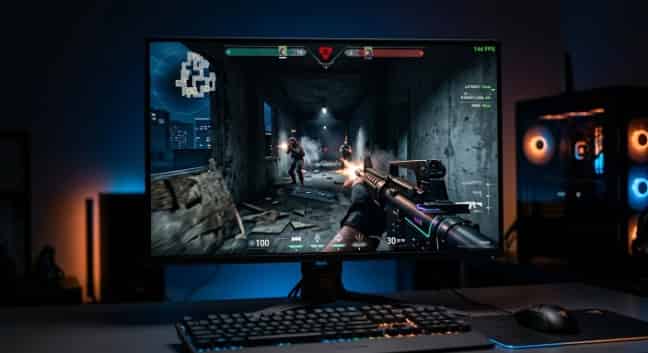
Nada arruina una incursión más rápido que los tirones de fotogramas y el retraso de entrada. Detectas a un enemigo, aprietas el gatillo y el juego se congela por una fracción de segundo. Para cuando el fotograma se actualiza, ya estás de vuelta en el lobby mirando la pantalla de muerte.
Los problemas de rendimiento afectan a los jugadores de Arena Breakout: Infinite en todos los niveles de hardware. Los equipos de gama alta sufren con tiempos de fotogramas inconsistentes, mientras que las configuraciones económicas no logran mantener un FPS jugable. La mayoría de los jugadores ejecutan el juego con los ajustes predeterminados, desperdiciando mejoras masivas de rendimiento.
Esta guía de TOPUPlivete muestra exactamente cómo mostrar tus FPS, optimizar cada ajuste gráfico y exprimir el máximo rendimiento de tu PC. Desde buscar más de 144 FPS para el juego competitivo hasta lograr una experiencia fluida en hardware antiguo, estos ajustes transformarán tu experiencia.
código promocional: >> topupliveblog <<


100 Bonds


Klukai Guarantee Bundle
Leva Guarantee Bundle
Sangvis Ferri Bundle
▍Cómo mostrar los FPS en Arena Breakout: Infinite
Antes de optimizar cualquier cosa, necesitas ver tu tasa de fotogramas. Arena Breakout: Infinite ofrece múltiples formas de mostrar los FPS.
Método 1: Contador de FPS dentro del juego (Recomendado)
El contador de FPS integrado es la opción más precisa. Muestra la tasa de fotogramas en tiempo real sin añadir sobrecarga de software.
1. Inicia Arena Breakout: Infinite
2. Abre Ajustes desde el menú principal o la pantalla de pausa
3. Ve a la pestaña de Vídeo o Pantalla
4. Busca la opción "Mostrar FPS" o "Visualización de FPS"
5. Actívalo
6. El contador de FPS aparece en la esquina de la pantalla durante el juego
Método 2: Contador de FPS de Steam
Si juegas a través de Steam, el cliente ofrece su propia superposición.
1. Abre Steam y haz clic en Steam en la esquina superior izquierda
2. Selecciona Parámetros
3. Haz clic en la pestaña En la partida
4. Busca "Contador de FPS en la partida"
5. Selecciona una posición de esquina (superior izquierda, superior derecha, inferior izquierda o inferior derecha)
6. Haz clic en Aceptar
Método 3: NVIDIA GeForce Experience
Los usuarios de NVIDIA pueden usar la superposición de GeForce Experience para obtener métricas de rendimiento detalladas.
Presiona Alt + Z para abrir la superposición de GeForce Experience
Haz clic en el icono de engranaje de Configuración
Selecciona Distribución del HUD
4. Elegir rendimiento
5. Selecciona FPS para mostrarlo en el juego
Método 4: Software AMD Adrenalin
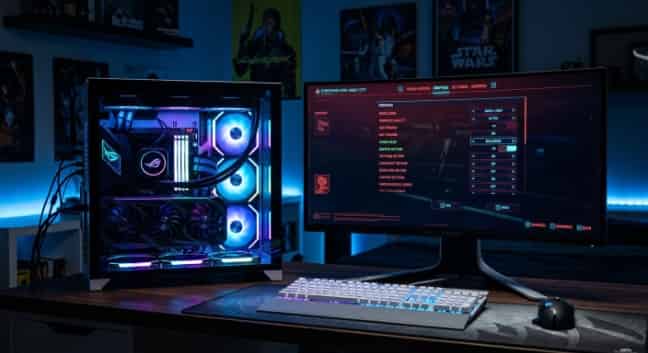
Un monitor de alta frecuencia de actualización con un contador de FPS te ofrece información sobre el rendimiento en tiempo real.
Los usuarios de AMD tienen una funcionalidad similar a través del software Adrenalin.
1. Abra el software AMD Adrenalin
2. Navegue hasta la pestaña Rendimiento
3. Haga clic en Superposición
4. Active "Mostrar superposición de métricas"
5. Asegúrese de que FPS esté marcado en la lista de métricas
Consejo profesional: utiliza el contador integrado del juego para obtener la lectura más precisa. Las herramientas de terceros pueden añadir una ligera carga adicional, aunque el impacto suele ser mínimo en el hardware moderno.
▍Descripción del menú de ajustes de gráficos
Arena Breakout: Infinite organiza las opciones gráficas en categorías lógicas. Saber qué hace cada ajuste te ayuda a tomar decisiones informadas entre la calidad visual y el rendimiento.
Ajustes preestablecidos de calidad
El juego ofrece cinco configuraciones preestablecidas:
Preajuste | Ideal para | Impacto esperado en los FPS |
Bajo | FPS máximos en PC económicos | Tasas de fotogramas más altas, efectos visuales mínimos |
Medio | Jugabilidad equilibrada | Buenos FPS con gráficos aceptables |
Alta | Prioridad de calidad visual | FPS moderados con detalles mejorados |
Ultra | Sistemas de gama alta | Mejores efectos visuales, exigente con el hardware |
Personalizado | Optimización ajustada | Mezcla ajustes según tus prioridades |
Recomendación: Comienza con Personalizado. Los ajustes preestablecidos aplican cambios generales que rara vez coinciden con las fortalezas específicas de tu hardware. El modo Personalizado te permite mantener los ajustes importantes y reducir los que no lo son.
¿Ya tienes el juego instalado? Si no, consíguelo gratis en Steam o el Epic Games Store primero.
Opciones de gráficos individuales
1. Configuración de pantalla:
- Resolución: La resolución nativa de su monitor (p. ej., 1920x1080, 2560x1440). Reducirla mejora significativamente los FPS, pero reduce la claridad.
- Modo de pantalla: Pantalla completa, Ventana o Ventana sin bordes. La pantalla completa ofrece el menor retraso de entrada.
- Frecuencia de actualización: Debe coincidir con el máximo de su monitor (60 Hz, 144 Hz, 240 Hz).
- Campo de visión (FOV): Qué tanto del mundo puedes ver. Los valores más altos (90-110) mejoran la conciencia situacional, pero reducen ligeramente los FPS.
2. Ajustes de calidad visual:
- Calidad de texturas: Resolución de los detalles de la superficie. Las texturas altas se ven más nítidas pero consumen VRAM.
- Calidad de sombras: Detalle y precisión de las sombras. Uno de los ajustes más exigentes.
- Calidad de efectos: Detalle de explosiones, partículas y destellos de disparo.
- Calidad de postprocesado: Controla el resplandor (bloom), los reflejos de lente y la gradación de color.
- Distancia de visión: qué tan lejos se renderizan los objetos. Fundamental para detectar enemigos a larga distancia.
- Oclusión ambiental: añade sombras realistas en esquinas y grietas. Exigente para la GPU.
- Antialiasing: Suaviza los bordes dentados. Las opciones suelen incluir Desactivado, FXAA y TAA.
3. Funciones de rendimiento:
- Sincronización vertical (VSync): Sincroniza la tasa de fotogramas con la frecuencia de actualización del monitor. Elimina el desgarro de pantalla pero añade retraso de entrada (input lag).
- Desenfoque de movimiento (Motion Blur): Desenfoca la pantalla durante el movimiento. Desactívalo para el juego competitivo.
- Granulado de película: añade ruido cinematográfico. Es una preferencia personal, pero la mayoría de los jugadores lo desactivan.
- NVIDIA Reflex / AMD Anti-Lag: reduce la latencia del sistema. Actívalo si está disponible.
- DLSS / FSR / XeSS: tecnologías de escalado por IA que aumentan los FPS con una pérdida mínima de calidad.
▍Mejor configuración para el juego competitivo
Los jugadores competitivos priorizan la tasa de fotogramas y el retraso de entrada sobre la fidelidad visual. Cada milisegundo cuenta cuando intercambias disparos con otro jugador.
Configuración de ajustes competitivos
Ajuste | Valor recomendado | Razón |
Preajuste | Personalizado | Ajustar cada opción |
Resolución | Nativa | Bajar solo si los FPS son inestables |
Modo de pantalla | Pantalla completa | Menor retraso de entrada |
Campo de visión (FOV) | 90-100 | Mejor visión periférica |
Calidad de texturas | Medio/Alto | Identificar enemigos claramente |
Calidad de sombras | Bajo/Desactivado | Gran aumento de FPS, impacto mínimo en el juego |
Calidad de efectos | Bajo | Reduce el desorden visual en combate |
Postprocesado | Bajo/Desactivado | Elimina el resplandor que oculta a los enemigos |
Distancia de visión | Alto/Ultra | Detecta enemigos a la distancia máxima |
Oclusión ambiental | Desactivado | Aumento significativo de FPS |
Antialiasing | Desactivado o FXAA | El TAA causa desenfoque de movimiento y efecto fantasma |
Desenfoque de movimiento | Desactivado | Desactivar siempre para el juego competitivo |
Granulado de película | Desactivado | Imagen más nítida para la adquisición de objetivos |
Sincronización vertical | Desactivado | Elimina el retraso de entrada |
NVIDIA Reflex | Activado + Boost | Latencia mínima posible |
AMD Anti-Lag | Activado | Reduce el retraso de entrada |
Límite de velocidad de fotogramas | 140 / 240 | Se ajusta al monitor (144Hz/240Hz) para evitar inconsistencias |
Por qué funcionan estos ajustes
Las sombras son el principal factor que reduce el rendimiento. Requieren que la GPU calcule la oclusión de luz en cada fotograma. En el juego competitivo, no necesitas sombras bonitas; necesitas ver a los enemigos con claridad. Cambiar las sombras a Bajo o Desactivado puede aumentar los FPS entre un 20 y un 30 % en la mayoría de los sistemas.
El postprocesado añade efectos visuales que parecen cinematográficos pero perjudican la visibilidad. El resplandor (Bloom) hace que las zonas brillantes brillen demasiado. Los destellos de lente distraen tu puntería. La gradación de color cambia los tonos de forma que puede camuflar a los enemigos. Desactívalo todo.
La Distancia de Visión es la excepción a la regla de "bajar todos los ajustes". Ver a los enemigos a larga distancia te otorga una ventaja táctica masiva. Mantén este ajuste en Alto o Ultra incluso en sistemas de gama baja. El coste de FPS merece la pena por la ganancia de información.
El suavizado de bordes (Anti-Aliasing) es otro ajuste que debe tratarse con cuidado. El TAA (Suavizado Temporal) suaviza los bordes pero provoca desenfoque de movimiento y efecto fantasma durante los movimientos rápidos. El FXAA es menos exigente pero más borroso. Para el juego competitivo, muchos jugadores desactivan el AA por completo y aceptan algunos bordes dentados a cambio de la máxima claridad.
▍Mejor configuración para la calidad visual
No a todo el mundo le importa la ventaja competitiva. Algunos jugadores quieren que Kamona se vea lo más inmersivo y detallado posible.
Configuración de los ajustes de calidad visual
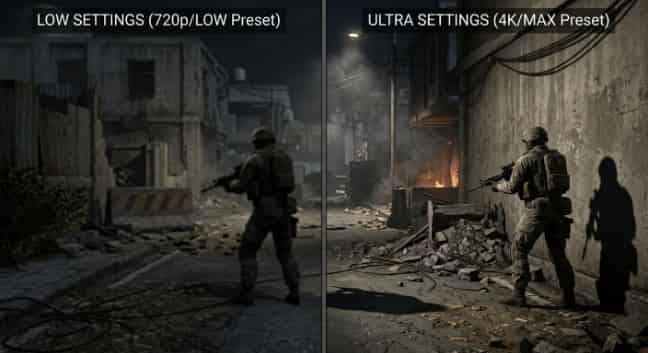
Los ajustes Ultra ofrecen visuales impresionantes, pero los ajustes Bajos pueden duplicar tus FPS.
Ajuste | Valor recomendado | Impacto visual |
Preajuste | Ultra | Línea base de fidelidad máxima |
Resolución | Nativo o superior (DSR/DLDSR) | Imagen más nítida |
Modo de pantalla | Pantalla completa o sin bordes | Preferencia personal |
Campo de visión (FOV) | 75-85 | Más cinematográfico, menos distorsión |
Calidad de texturas | Ultra | Detalles de superficie nítidos |
Calidad de sombras | Alto/Ultra | Luz y profundidad realistas |
Calidad de efectos | Alto/Ultra | Explosiones y partículas detalladas |
Postprocesado | Alto/Ultra | Resplandor cinematográfico y gradación de color |
Distancia de visión | Ultra | Terreno distante renderizado por completo |
Oclusión ambiental | Alta | Sombras de contacto realistas |
Antialiasing | TAA | Bordes más suaves |
Desenfoque de movimiento | Activado (opcional) | Movimiento cinematográfico |
Granulado de película | Sutil o Desactivado | Preferencia personal |
Sincronización vertical | Activado (si no hay G-Sync/FreeSync) | Elimina el desgarro de pantalla |
DLSS/FSR | Calidad o Desactivado | Desactivado si la GPU maneja la resolución nativa |
Importante: si tienes un monitor G-Sync o FreeSync, desactiva VSync en el juego y actívalo en el panel de control de tu GPU en su lugar. Esto elimina el desgarro de imagen (tearing) sin la penalización de retraso de entrada (input lag).
▍Guía de optimización para PC de gama baja
No necesitas un equipo de 2000 dólares para jugar Arena Breakout: Infinite. Con los ajustes adecuados, incluso el hardware económico puede ofrecer tasas de fotogramas jugables.
Lista de verificación: Optimización para PC de gama baja
- Establecer el ajuste preestablecido en Bajo: Comienza con el ajuste Bajo como base.
- Reducir la resolución: Baja a 1600x900 o 1280x720 si los FPS siguen siendo inestables.
- Desactivar todos los efectos: Desactiva el desenfoque de movimiento, el granulado de película y la oclusión ambiental.
- Desactivar sombras: La mayor mejora de rendimiento individual.
- Desactivar el suavizado de bordes: FXAA consume FPS con un beneficio visual mínimo en ajustes bajos.
- Reducir la calidad de las texturas: Establécelo en Bajo si tienes 4 GB o menos de VRAM.
- Establecer distancia de visión en Media: Equilibrio entre rendimiento y detección de enemigos.
- Limitar la tasa de fotogramas: Limitar a 30 o 60 FPS para reducir la carga del sistema.
- Cerrar aplicaciones en segundo plano: cierra navegadores, Discord y software de transmisión.
- Actualizar controladores de gráficos: los controladores más recientes suelen incluir optimizaciones específicas para juegos.
- Instalar en SSD: Mover el juego de un HDD a un SSD reduce significativamente los tirones.
- Monitorear temperaturas: El sobrecalentamiento causa estrangulamiento térmico y caídas de FPS.
¿Necesitas mejor equipo para aprovechar tus nuevas tasas de fotogramas?Recarga Arena Breakout: Infinite en TOPUPlive para obtener Bonds al instante y comprar equipo premium.
Optimizaciones de Windows
El hardware adecuado y la configuración de Windows constituyen la base de una experiencia de juego fluida. Más allá de los ajustes dentro del juego, el propio Windows ofrece varios ajustes de rendimiento:
Activar el Modo de juego:
1. Presione la tecla Windows + I para abrir Configuración
2. Haga clic en Juegos
3. Seleccione el Modo de juego
4. Actívalo
El Modo de juego prioriza los procesos del juego y reduce la interferencia de las tareas en segundo plano.
Habilitar la programación de GPU acelerada por hardware:
1. Abra Configuración -> Sistema -> Pantalla
2. Desplácese hacia abajo y haga clic en Gráficos
3. Haga clic en Cambiar la configuración de gráficos predeterminada
4. Cambie la Programación de GPU acelerada por hardware a Activado
5. Reinicie su PC
Esta función reduce la latencia al permitir que la GPU gestione su propia programación de memoria.
Establecer el plan de energía en Alto rendimiento:
1. Abrir el Panel de control
2. Hacer clic en Opciones de energía
3. Seleccionar Alto rendimiento o Rendimiento máximo
Esto evita que Windows limite el rendimiento de tu CPU para ahorrar energía.
Deshabilitar programas de inicio:
Presione Ctrl + Mayús + Esc para abrir el Administrador de tareas
Haga clic en la pestaña Inicio
Haga clic derecho en los programas innecesarios y seleccione Deshabilitar
Menos programas de inicio significan más RAM libre y ciclos de CPU para jugar.
▍Optimizaciones específicas para NVIDIA y AMD
El fabricante de su GPU proporciona herramientas que pueden mejorar aún más el rendimiento más allá de los ajustes del juego.
Optimizaciones de NVIDIA
Configuración del Panel de control de NVIDIA:
1. Haz clic derecho en tu escritorio y selecciona el Panel de control de NVIDIA
2. Haz clic en Controlar la configuración 3D
3. Selecciona la pestaña Configuración de programa
4. Añade Arena Breakout: Infinite desde el menú desplegable
5. Ajuste estas configuraciones:
- Modo de control de energía: Preferir rendimiento máximo
- Filtrado de texturas - Calidad: Alto rendimiento
- Modo de baja latencia: Activado (si no se usa Reflex en el juego)
- Optimización segmentada: Activado
NVIDIA Reflex:
Si tienes una GPU NVIDIA compatible (serie GTX 900 o posterior), activa Reflex en el juego. Configúralo en "On + Boost" para obtener la latencia de sistema más baja posible. Esta tecnología reduce el tiempo entre el clic del ratón y la acción que aparece en pantalla.
DLSS (Deep Learning Super Sampling):
Si Arena Breakout: Infinite es compatible con DLSS y tienes una GPU RTX, experimenta con estos modos:
- Calidad: Mejor calidad de imagen, aumento moderado de FPS
- Equilibrado: punto medio entre calidad y rendimiento
- Rendimiento: máximo aumento de FPS, ligera suavidad
- Ultra rendimiento: para pantallas 4K, escalado agresivo
Optimizaciones de AMD
Ajustes de software AMD Adrenalin:
1. Abra el software AMD Adrenalin
2. Haz clic en la pestaña Juegos
3. Selecciona Arena Breakout: Infinite
4. Ajuste estos parámetros:
- Radeon Anti-Lag: Activado
- Radeon Chill: Opcional, limita los FPS para reducir el calor
- Radeon Image Sharpening: Activado (ayuda si se usa FSR)
- Calidad de filtrado de texturas: Rendimiento
AMD FSR (FidelityFX Super Resolution):
Si el juego es compatible con FSR, actívalo para obtener una mejora de rendimiento gratuita. FSR funciona en la mayoría de las GPU de AMD e incluso en algunas tarjetas de NVIDIA. Los modos de calidad son similares a DLSS:
- Calidad Ultra: Mejores efectos visuales
- Calidad: Buen equilibrio
- Equilibrado: Ligera pérdida de calidad
- Rendimiento: FPS máximos
▍Problemas de rendimiento comunes y soluciones
Incluso con la configuración óptima, podrías encontrar problemas específicos. Aquí te explicamos cómo solucionar los más comunes.
Tartamudeo y picos de tiempo de fotograma
Síntomas: los FPS parecen altos, pero el juego se siente entrecortado. Los tiempos de fotograma varían drásticamente.
Soluciones:
- Bajar la calidad de las sombras y la calidad de los efectos
- Activar el modo de pantalla completa en lugar de sin bordes
- Actualice los controladores de gráficos a la última versión
- Cierre las aplicaciones en segundo plano, especialmente los navegadores web
- Asegúrate de que el juego se ejecute desde un SSD, no desde un disco duro
- Desactiva la programación de GPU acelerada por hardware si causa problemas
- Limita tu tasa de fotogramas ligeramente por debajo de la frecuencia de actualización de tu monitor
FPS bajos a pesar de tener un buen hardware
Síntomas: Tu PC supera las especificaciones recomendadas pero los FPS se mantienen bajos.
Soluciones:
- Comprueba si el juego está utilizando tu GPU dedicada en lugar de los gráficos integrados
- Verifica que la calidad de las texturas no esté configurada por encima de lo que permite tu VRAM
- Desactiva VSync y usa un limitador de velocidad de fotogramas en su lugar
- Comprueba si hay cuellos de botella en la CPU en el Administrador de tareas durante el juego
- Asegúrate de que tu memoria RAM esté funcionando a su velocidad nominal en la BIOS
- Busca malware que pueda estar consumiendo recursos del sistema
El juego se cierra durante la partida
Síntomas: El juego se cierra inesperadamente, a menudo durante combates intensos.
Soluciones:
- Verifica los archivos del juego a través de Steam o Epic Games Launcher
- Reducir la calidad de los efectos y de las sombras
- Actualiza los controladores de gráficos
- Comprueba las temperaturas de la GPU y la CPU para evitar el sobrecalentamiento
- Desactiva cualquier overclock en tu GPU o CPU
- Ejecutar el juego como administrador
- Reinstalar el juego si la corrupción de archivos persiste
Desgarro de pantalla (Screen Tearing) sin VSync
Síntomas: Aparecen líneas horizontales durante los movimientos rápidos de la cámara.
Soluciones:
Habilite G-Sync (NVIDIA) o FreeSync (AMD) en el panel de control de su GPU
Limita la tasa de fotogramas entre 3 y 5 FPS por debajo de la frecuencia de actualización máxima de tu monitor
Si no tienes sincronización adaptativa, activa VSync y acepta el compromiso del retraso de entrada (input lag)
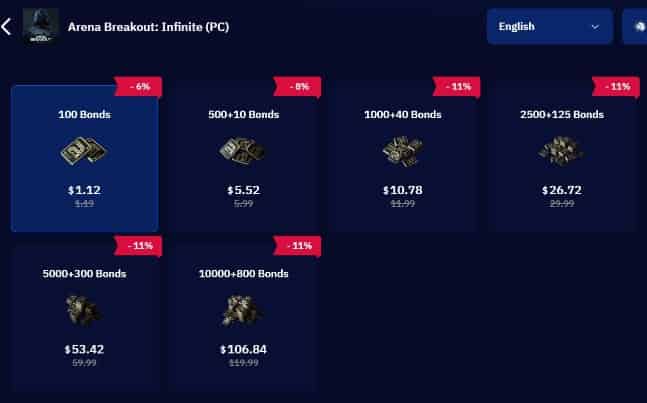
Visita TOPUPlive: tu sitio de confianzaRecarga de Arena Breakout—¡para obtener más recursos para tus misiones de suministros! Crea tu reserva táctica definitiva con nuestros servicios de recarga seguros, eficientes y económicos.
>>¡Haz clic en la imagen para usar el código promocional: topupliveblog ahora!<<
▍Preguntas frecuentes (FAQ)
P: ¿Cuál es el mejor ajuste de FOV para Arena Breakout: Infinite?
A: Para el juego competitivo, usa un FOV de 90-100. Esto te brinda una visión periférica más amplia para detectar enemigos que se acercan por los lados. Para una mayor inmersión, un FOV de 75-85 se siente más realista. Un FOV más alto reduce ligeramente los FPS, pero la ventaja táctica vale la pena.
P: ¿Debería usar DLSS o FSR en Arena Breakout: Infinite?
A: Si tu GPU es compatible con DLSS (NVIDIA RTX) o FSR (AMD/NVIDIA antigua), actívalo en modo Calidad o Equilibrado. Estas tecnologías renderizan el juego a una resolución menor y lo reescalan, ofreciéndote más FPS con una pérdida visual mínima. Si ya mantienes FPS altos a resolución nativa, no necesitas el reescalado.
P: ¿Por qué bajan mis FPS durante los tiroteos?
A: El combate implica múltiples efectos exigentes: fogonazos, explosiones, efectos de partículas y múltiples modelos de personajes. Reduce la Calidad de los Efectos y la Calidad de las Sombras para disminuir este impacto. Asegúrate también de que tu CPU no esté causando un cuello de botella durante los momentos intensos.
P: ¿Es peor el modo Ventana sin bordes que el de Pantalla completa?
A: Sí, ligeramente. El modo Ventana sin bordes añade una pequeña cantidad de retraso de entrada (input lag) y puede reducir los FPS entre un 5 y un 10% en comparación con la Pantalla completa. Sin embargo, hace que el Alt-Tab sea más rápido y funciona mejor con varios monitores. Usa Pantalla completa para el juego competitivo y Ventana sin bordes para sesiones casuales.
P: ¿Puedo editar los archivos de configuración para obtener un mejor rendimiento?
A: No recomendamos editar los archivos de configuración manualmente. Arena Breakout: Infinite utiliza un sistema antitrampas a nivel de núcleo (ACE), y las modificaciones de archivos no autorizadas pueden provocar baneos. Limítate a los ajustes del juego y a las configuraciones del panel de control de tu GPU.
P: ¿Dónde puedo encontrar mi ID de usuario para las compras?
R: Tu ID de usuario aparece en tu perfil dentro del juego o en el menú de ajustes. Consulta nuestra guía en dónde encontrar tu ID de usuario de Arena Breakout para obtener instrucciones detalladas.
▍Domina la Zona Oscura con el máximo rendimiento
Ahora tienes todo lo necesario para optimizar Arena Breakout: Infinite para tu configuración específica. Los jugadores competitivos pueden buscar el máximo de FPS y el mínimo retraso de entrada. Los entusiastas de lo visual pueden subir todos los ajustes a Ultra. Los jugadores con presupuestos limitados pueden lograr tasas de fotogramas jugables sin necesidad de actualizar su hardware.
Recuerda que la optimización es algo personal. Los "mejores" ajustes dependen de tu hardware, tu monitor y tus prioridades. Utiliza el contador de FPS, experimenta con diferentes configuraciones y encuentra lo que mejor te funcione.
El rendimiento es solo una pieza del rompecabezas. Una vez que tus ajustes estén optimizados, necesitarás el equipo y la moneda adecuados para competir. Dirígete a TOPUPlive para una entrega rápida de Bonds. Mejora tu armamento, compra mejor equipo y extrae con el mejor botín.
Nos vemos en la incursión, operativo. Que tus fotogramas sean altos y tu latencia baja.
Última actualización: mayo de 2026. Las características del juego reflejan el contenido de la Temporada 5. Consulta siempre elsitio web oficial de Arena Breakout: Infinitepara ver las últimas notas del parche y los cambios en los requisitos del sistema.
¿Listo para equiparte? Dirígete a TOPUPlive para obtener descuentos rápidosRecarga de Bonos de Arena Breakout y disfruta de más incursiones con ventajas premium. ¡Juega con inteligencia y extráete a salvo!
>>Comprar Arena Breakout Bonds<<

Nightwind Ororon
game writer
I focus on crafting guides, tips, and strategy content that truly resonates with players. Being deeply invested in Genshin Impact and Honkai: Star Rail, I love exploring every new map and character kit. I take my firsthand experience from the latest updates and turn it into simple, actionable advice to help fellow players navigate Teyvat and the Cosmos with ease.
Productos relacionados
Noticias relacionadas

Guía de recarga de Tower of Saviors: precios, métodos y cómo conseguir diamantes
Avance de Aniimo Temporada 1 Parte 2: Nuevos Aniimo, mapas, eventos y más
Last War Survival Top Up: La mejor manera de comprar paquetes, diamantes y códigos de regalo
Guía de lingotes de oro de Last War: Cómo obtener, usar y comprar lingotes de oro de forma segura
Mejores packs de Last War para comprar: guía completa + dónde conseguirlos más baratos
5 Mejores centros de recarga para Last War Survival: dónde conseguir las mejores ofertas y recargas seguras
Guía de Marene en AFK Journey: Habilidades, mejores equipos, build y ¿merece la pena tirar por ella?
Avance de la Temporada 14 de Arena Breakout: Fecha de lanzamiento de C2S0, nuevo contenido y más