


คู่มือการตั้งค่า FPS และกราฟิก Arena Breakout Infinite | TOPUPlive

2026-05-26 10:54:04
การตั้งค่าที่เหมาะสมสามารถช่วยเพิ่ม FPS ของคุณได้เป็นเท่าตัว และช่วยให้คุณได้เปรียบในการแข่งขันใน Dark Zone
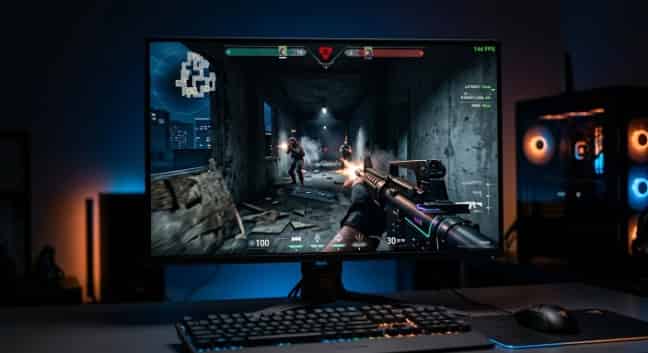
ไม่มีอะไรจะทำลายการบุกปล้นได้เร็วไปกว่าอาการเฟรมกระตุกและอาการดีเลย์ของอินพุตอีกแล้ว คุณเจอศัตรู เหนี่ยวไกปืน แต่เกมกลับค้างไปชั่วขณะ และกว่าที่เฟรมจะอัปเดต คุณก็กลับไปอยู่ที่หน้าล็อบบี้และจ้องมองหน้าจอความตายเสียแล้ว
ปัญหาด้านประสิทธิภาพกำลังรบกวนผู้เล่น Arena Breakout: Infinite ในทุกระดับฮาร์ดแวร์ โดยเครื่องสเปกสูงต้องเผชิญกับปัญหาเฟรมไทม์ที่ไม่คงที่ ในขณะที่เครื่องสเปกประหยัดไม่สามารถรักษา FPS ให้อยู่ในระดับที่เล่นได้ ผู้เล่นส่วนใหญ่รันเกมด้วยการตั้งค่าเริ่มต้น ซึ่งทำให้พลาดโอกาสในการเพิ่มประสิทธิภาพการทำงานของเกมไปอย่างน่าเสียดาย
คู่มือนี้จาก TOPUPliveจะแสดงให้คุณเห็นวิธีแสดงค่า FPS อย่างละเอียด การปรับแต่งการตั้งค่ากราฟิกทุกส่วน และการรีดประสิทธิภาพสูงสุดจาก PC ของคุณ ไม่ว่าจะเป็นการทำเฟรมเรตให้ได้ 144+ FPS เพื่อการเล่นแบบแข่งขัน หรือการทำให้เล่นเกมได้ลื่นไหลบนฮาร์ดแวร์รุ่นเก่า การตั้งค่าเหล่านี้จะเปลี่ยนประสบการณ์การเล่นเกมของคุณไปอย่างสิ้นเชิง
รหัสโปรโมชัน: >> topupliveblog <<


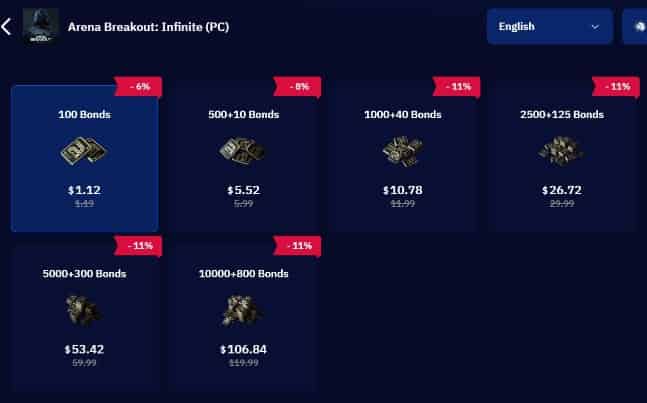
100 Bonds


Klukai Guarantee Bundle
Leva Guarantee Bundle
Sangvis Ferri Bundle
▍วิธีแสดง FPS ใน Arena Breakout: Infinite
ก่อนที่คุณจะปรับแต่งสิ่งใด คุณจำเป็นต้องดูอัตราเฟรมของคุณก่อน Arena Breakout: Infinite มีหลายวิธีในการแสดงค่า FPS
วิธีที่ 1: ตัวนับ FPS ในเกม (แนะนำ)
ตัวนับ FPS ในตัวเป็นตัวเลือกที่แม่นยำที่สุด ซึ่งจะแสดงอัตราเฟรมแบบเรียลไทม์โดยไม่เพิ่มภาระให้กับซอฟต์แวร์
1. เริ่มต้น Arena Breakout: Infinite
2. เปิดการตั้งค่าจากเมนูหลักหรือหน้าจอหยุดชั่วคราว
3. ไปที่แถบวิดีโอ (Video) หรือการแสดงผล (Display)
4. ค้นหาตัวเลือก "แสดง FPS" หรือ "การแสดงผล FPS"
5. สลับเป็นเปิด
6. ตัวนับ FPS จะปรากฏที่มุมหน้าจอของคุณระหว่างการเล่นเกม
วิธีที่ 2: ตัวนับ FPS ของ Steam
หากคุณเล่นผ่าน Steam ตัวโปรแกรมจะมีฟีเจอร์ Overlay ของตัวเองให้ใช้งาน
1. เปิด Steam และคลิกที่ Steam ตรงมุมซ้ายบน
2. เลือก การตั้งค่า
3. คลิกที่แถบ ในเกม
4. ค้นหา "ตัวนับ FPS ในเกม"
5. เลือกตำแหน่งมุม (บนซ้าย, บนขวา, ล่างซ้าย หรือ ล่างขวา)
6. คลิก ตกลง
วิธีที่ 3: NVIDIA GeForce Experience
ผู้ใช้ NVIDIA สามารถใช้โอเวอร์เลย์ GeForce Experience เพื่อดูตัวชี้วัดประสิทธิภาพโดยละเอียด
1. กด Alt + Z เพื่อเปิดโอเวอร์เลย์ GeForce Experience
2. คลิกไอคอนรูปฟันเฟืองการตั้งค่า
3. เลือกรูปแบบ HUD
4. เลือกประสิทธิภาพ
5. เลือก FPS เพื่อแสดงผลในเกม
วิธีที่ 4: ซอฟต์แวร์ AMD Adrenalin
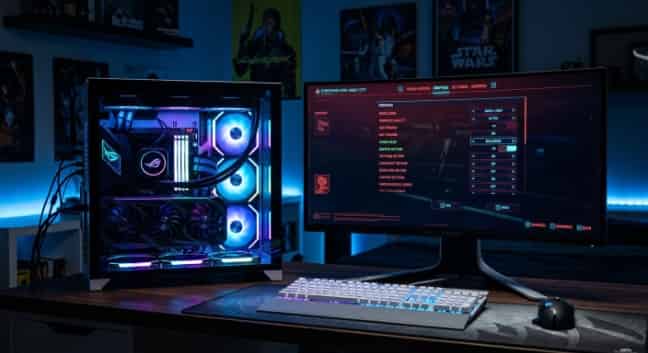
จอภาพที่มีอัตราการรีเฟรชสูงพร้อมตัวนับ FPS จะช่วยให้คุณทราบข้อมูลประสิทธิภาพการทำงานแบบเรียลไทม์
ผู้ใช้ AMD มีฟังก์ชันการทำงานที่คล้ายกันผ่านซอฟต์แวร์ Adrenalin
1. เปิดซอฟต์แวร์ AMD Adrenalin
2. ไปที่แท็บ Performance (ประสิทธิภาพ)
3. คลิกที่ Overlay (การซ้อนทับ)
4. เปิดใช้งาน "Show Metrics Overlay" (แสดงการซ้อนทับตัวชี้วัด)
5. ตรวจสอบให้แน่ใจว่าได้เลือก FPS ในรายการเมตริกแล้ว
เคล็ดลับระดับโปร: ควรใช้ตัวนับภายในเกมเพื่อให้ได้ค่าที่แม่นยำที่สุด เครื่องมือจากภายนอกอาจทำให้เกิดภาระงานส่วนเกินเล็กน้อย แม้ว่าโดยปกติแล้วจะส่งผลกระทบน้อยมากต่อฮาร์ดแวร์สมัยใหม่ก็ตาม
▍ทำความเข้าใจเมนูการตั้งค่ากราฟิก
Arena Breakout: Infinite จัดหมวดหมู่ตัวเลือกกราฟิกอย่างเป็นระบบ การเข้าใจหน้าที่ของแต่ละการตั้งค่าจะช่วยให้คุณตัดสินใจเลือกความสมดุลระหว่างคุณภาพของภาพและประสิทธิภาพได้อย่างเหมาะสม
ค่าที่ตั้งไว้ล่วงหน้าของคุณภาพ
เกมมีการตั้งค่าล่วงหน้าให้เลือก 5 รูปแบบ:
ค่าที่ตั้งไว้ | เหมาะที่สุดสำหรับ | ผลกระทบต่อ FPS ที่คาดไว้ |
ต่ำ | FPS สูงสุดสำหรับคอมพิวเตอร์สเปกประหยัด | เฟรมเรตสูงสุดโดยลดคุณภาพกราฟิกให้เหลือน้อยที่สุด |
ปานกลาง | สมดุลระหว่างการเล่นเกม | FPS ที่ดีพร้อมกราฟิกที่ยอมรับได้ |
สูง | เน้นคุณภาพของภาพ | FPS ระดับปานกลางพร้อมรายละเอียดที่ปรับปรุงขึ้น |
อัลตรา | ระบบระดับไฮเอนด์ | ภาพสวยที่สุด แต่ใช้ทรัพยากรเครื่องสูง |
กำหนดเอง | การปรับแต่งอย่างละเอียด | ผสมผสานการตั้งค่าตามความสำคัญของคุณ |
คำแนะนำ: เริ่มต้นด้วยการตั้งค่าแบบกำหนดเอง (Custom) เนื่องจากการตั้งค่าล่วงหน้า (Presets) มักเป็นการปรับเปลี่ยนแบบครอบคลุมซึ่งไม่ค่อยสอดคล้องกับจุดเด่นของฮาร์ดแวร์เฉพาะของคุณ การตั้งค่าแบบกำหนดเองจะช่วยให้คุณคงการตั้งค่าที่สำคัญไว้และลดระดับการตั้งค่าที่ไม่จำเป็นลงได้
ติดตั้งเกมแล้วหรือยัง? หากยังไม่มี สามารถรับได้ฟรีจากSteam หรือEpic Games Storeก่อน
ตัวเลือกกราฟิกแยก
1. การตั้งค่าการแสดงผล:
- ความละเอียด: ความละเอียดดั้งเดิมของจอภาพของคุณ (เช่น 1920x1080, 2560x1440) การลดค่านี้จะช่วยเพิ่ม FPS ได้อย่างมาก แต่จะทำให้ความคมชัดลดลง
- โหมดการแสดงผล: เต็มหน้าจอ, หน้าต่าง หรือหน้าต่างไม่มีขอบ โหมดเต็มหน้าจอจะให้ค่าความหน่วงของอินพุตต่ำที่สุด
- อัตราการรีเฟรช: ควรตั้งค่าให้ตรงกับค่าสูงสุดของจอภาพของคุณ (60Hz, 144Hz, 240Hz)
- ขอบเขตการมองเห็น (FOV): ระดับความกว้างของโลกที่คุณมองเห็น ค่าที่สูงขึ้น (90-110) จะช่วยเพิ่มการรับรู้สถานการณ์รอบตัว แต่จะลด FPS ลงเล็กน้อย
2. การตั้งค่าคุณภาพกราฟิก:
- คุณภาพพื้นผิว: ความละเอียดของรายละเอียดพื้นผิว พื้นผิวคุณภาพสูงจะดูคมชัดกว่าแต่ใช้ VRAM มากขึ้น
- คุณภาพเงา: รายละเอียดและความแม่นยำของเงา เป็นหนึ่งในการตั้งค่าที่กินทรัพยากรเครื่องมากที่สุด
- คุณภาพเอฟเฟกต์: รายละเอียดของการระเบิด อนุภาค และแสงวาบจากปากกระบอกปืน
- คุณภาพการประมวลผลหลังการแสดงผล: ควบคุมแสงฟุ้ง แสงสะท้อนในเลนส์ และการปรับโทนสี
- ระยะการมองเห็น: กำหนดระยะที่วัตถุจะปรากฏขึ้น สำคัญมากสำหรับการตรวจหาศัตรูในระยะไกล
- Ambient Occlusion: เพิ่มเงาที่สมจริงในมุมและรอยแยกต่างๆ ซึ่งค่อนข้างกินทรัพยากร GPU
- การลบรอยหยัก (Anti-Aliasing): ช่วยปรับขอบที่หยักให้เรียบเนียน โดยทั่วไปจะมีตัวเลือกคือ ปิด, FXAA และ TAA
3. คุณสมบัติด้านประสิทธิภาพ:
- VSync: ซิงโครไนซ์อัตราเฟรมกับอัตราการรีเฟรชของจอภาพ ช่วยลดอาการภาพขาดแต่จะเพิ่มความหน่วงของอินพุต
- Motion Blur: เบลอหน้าจอขณะเคลื่อนไหว ควรปิดสำหรับการเล่นแบบเน้นการแข่งขัน
- Film Grain: เพิ่มนอยส์แบบภาพยนตร์ เป็นความชอบส่วนบุคคล แต่ผู้เล่นส่วนใหญ่มักจะปิดการใช้งาน
- NVIDIA Reflex / AMD Anti-Lag: ลดความหน่วงของระบบ แนะนำให้เปิดใช้งานหากมีให้เลือก
- DLSS / FSR / XeSS: เทคโนโลยี AI upscaling ที่ช่วยเพิ่มค่า FPS โดยที่สูญเสียคุณภาพของภาพน้อยที่สุด
▍การตั้งค่าที่ดีที่สุดสำหรับการเล่นแบบเน้นการแข่งขัน
ผู้เล่นสายแข่งขันให้ความสำคัญกับอัตราเฟรมและอาการดีเลย์ของการป้อนข้อมูลมากกว่าความสวยงามของภาพ ทุกมิลลิวินาทีมีความหมายเมื่อคุณกำลังดวลปืนกับผู้เล่นคนอื่น
การกำหนดค่าการตั้งค่าสำหรับการแข่งขัน
การตั้งค่า | ค่าที่แนะนำ | เหตุผล |
ค่าที่ตั้งไว้ | กำหนดเอง | ปรับแต่งทุกตัวเลือกอย่างละเอียด |
ความละเอียด | เนทีฟ | ลดลงเฉพาะเมื่อ FPS ไม่เสถียร |
โหมดการแสดงผล | เต็มหน้าจอ | ดีเลย์การป้อนข้อมูลต่ำสุด |
FOV | 90-100 | การมองเห็นรอบข้างดีขึ้น |
คุณภาพพื้นผิว | กลาง/สูง | ระบุศัตรูได้อย่างชัดเจน |
คุณภาพเงา | ต่ำ/ปิด | เพิ่ม FPS อย่างมาก และส่งผลต่อการเล่นน้อยที่สุด |
คุณภาพเอฟเฟกต์ | ต่ำ | ลดความสับสนทางสายตาในการต่อสู้ |
กระบวนการหลังการประมวลผล | ต่ำ/ปิด | ลบแสงฟุ้งที่บดบังศัตรู |
ระยะการมองเห็น | สูง/อัลตร้า | ตรวจจับศัตรูได้ในระยะไกลที่สุด |
Ambient Occlusion | ปิด | ช่วยเพิ่ม FPS อย่างมาก |
Anti-Aliasing | ปิด หรือ FXAA | TAA ทำให้เกิดภาพเบลอขณะเคลื่อนไหวและภาพซ้อน |
Motion Blur | ปิด | ควรปิดเสมอสำหรับการเล่นแบบแข่งขัน |
Film Grain | ปิด | ภาพที่คมชัดขึ้นเพื่อการจับเป้าหมาย |
VSync | ปิด | กำจัดอาการดีเลย์ของอินพุต |
NVIDIA Reflex | เปิด + บูสต์ | ค่าความหน่วงต่ำที่สุดเท่าที่เป็นไปได้ |
AMD Anti-Lag | เปิด | ลดอาการดีเลย์ของอินพุต |
จำกัดเฟรมเรต | 140 / 240 | ปรับให้ตรงกับจอภาพ (144Hz/240Hz) เพื่อป้องกันความไม่สม่ำเสมอ |
ทำไมการตั้งค่าเหล่านี้ถึงได้ผล
เงาคือตัวการสำคัญที่ทำให้ประสิทธิภาพลดลงมากที่สุด เพราะ GPU ต้องคำนวณการบดบังของแสงในทุกๆ เฟรม ในการเล่นแบบแข่งขัน คุณไม่จำเป็นต้องมีเงาที่สวยงาม แต่คุณต้องมองเห็นศัตรูให้ชัดเจน การปรับเงาเป็นระดับต่ำ (Low) หรือปิด (Off) สามารถช่วยเพิ่ม FPS ได้ถึง 20-30% ในระบบส่วนใหญ่
Post Processing ช่วยเพิ่มเอฟเฟกต์ภาพให้ดูเหมือนภาพยนตร์แต่ส่งผลเสียต่อการมองเห็น Bloom ทำให้บริเวณที่สว่างเกิดการฟุ้งกระจาย Lens flares รบกวนการเล็งของคุณ Color grading เปลี่ยนโทนสีในลักษณะที่อาจพรางตัวศัตรูได้ แนะนำให้ปิดการใช้งานทั้งหมด
ระยะการมองเห็น (View Distance) คือข้อยกเว้นของกฎ "ปรับทุกอย่างให้ต่ำสุด" การมองเห็นศัตรูจากระยะไกลจะช่วยให้คุณได้เปรียบทางยุทธวิธีอย่างมหาศาล ควรตั้งค่านี้ไว้ที่ระดับ High หรือ Ultra แม้จะใช้เครื่องสเปกต่ำก็ตาม เพราะข้อมูลที่ได้รับนั้นคุ้มค่ากับค่า FPS ที่เสียไป
Anti-Aliasing เป็นอีกหนึ่งการตั้งค่าที่ต้องพิจารณาอย่างรอบคอบ TAA (Temporal Anti-Aliasing) ช่วยให้ขอบภาพดูเรียบเนียนขึ้น แต่จะทำให้เกิดอาการภาพเบลอ (Motion Blur) และภาพซ้อน (Ghosting) ในระหว่างการเคลื่อนที่อย่างรวดเร็ว ส่วน FXAA นั้นใช้ทรัพยากรเครื่องน้อยกว่าแต่ภาพจะดูเบลอกว่า สำหรับการเล่นแบบเน้นการแข่งขัน ผู้เล่นหลายคนเลือกที่จะปิด AA ไปเลย และยอมรับภาพที่มีรอยหยักบ้างเพื่อให้ได้ความคมชัดสูงสุด
▍การตั้งค่าที่ดีที่สุดเพื่อคุณภาพของภาพ
ไม่ใช่ทุกคนที่ให้ความสำคัญกับความได้เปรียบในการแข่งขัน ผู้เล่นบางคนต้องการให้ Kamona ดูสมจริงและมีรายละเอียดมากที่สุดเท่าที่จะเป็นไปได้
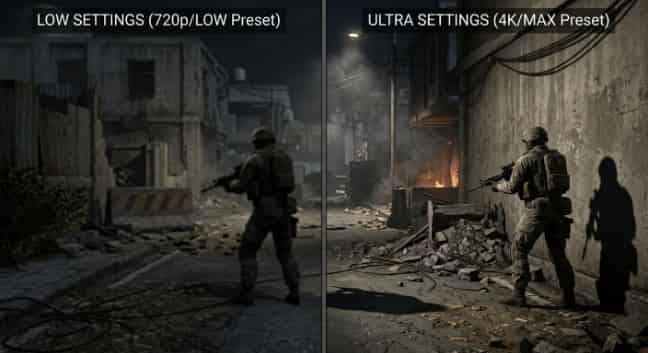
การกำหนดค่าการตั้งค่าคุณภาพของภาพ
การตั้งค่าระดับ Ultra ให้ภาพที่สวยงามตระการตา แต่การตั้งค่าระดับ Low สามารถช่วยเพิ่ม FPS ได้ถึงสองเท่า
การตั้งค่า | ค่าที่แนะนำ | ผลกระทบทางสายตา |
ค่าที่ตั้งไว้ | อัลตรา | เกณฑ์มาตรฐานความคมชัดสูงสุด |
ความละเอียด | ความละเอียดดั้งเดิมหรือสูงกว่า (DSR/DLDSR) | ภาพที่คมชัดที่สุด |
โหมดการแสดงผล | เต็มหน้าจอ หรือ แบบไม่มีขอบ | ความชอบส่วนบุคคล |
FOV | 75-85 | ให้ความรู้สึกเหมือนภาพยนตร์มากขึ้น ความผิดเพี้ยนน้อยลง |
คุณภาพพื้นผิว | อัลตรา | รายละเอียดพื้นผิวที่คมชัด |
คุณภาพเงา | สูง/อัลตร้า | แสงและความลึกที่สมจริง |
คุณภาพเอฟเฟกต์ | สูง/อัลตร้า | รายละเอียดการระเบิดและอนุภาค |
กระบวนการหลังการประมวลผล | สูง/อัลตร้า | เอฟเฟกต์แสงฟุ้งและการปรับโทนสีแบบภาพยนตร์ |
ระยะการมองเห็น | อัลตรา | แสดงผลภูมิประเทศที่ห่างไกลอย่างเต็มรูปแบบ |
Ambient Occlusion | สูง | เงาสัมผัสที่สมจริง |
Anti-Aliasing | TAA | ขอบเรียบเนียนที่สุด |
Motion Blur | เปิด (เลือกได้) | การเคลื่อนไหวแบบภาพยนตร์ |
Film Grain | เล็กน้อย หรือ ปิด | ความชอบส่วนบุคคล |
VSync | เปิด (หากไม่มี G-Sync/FreeSync) | กำจัดอาการภาพฉีกขาด |
DLSS/FSR | คุณภาพ หรือ ปิด | ปิด หาก GPU สามารถรันความละเอียดดั้งเดิมได้ |
ข้อควรระวัง: หากคุณใช้จอภาพ G-Sync หรือ FreeSync ให้ปิดการใช้งาน VSync ภายในเกม และไปเปิดใช้งานในแผงควบคุม GPU แทน วิธีนี้จะช่วยกำจัดอาการภาพฉีกขาดโดยไม่ทำให้เกิดปัญหาความหน่วงของอินพุต (input lag)
▍คู่มือการปรับแต่งสำหรับคอมพิวเตอร์สเปกต่ำ
คุณไม่จำเป็นต้องมีคอมพิวเตอร์ราคา 2,000 ดอลลาร์เพื่อเล่น Arena Breakout: Infinite เพราะด้วยการตั้งค่าที่เหมาะสม แม้แต่ฮาร์ดแวร์ราคาประหยัดก็สามารถทำเฟรมเรตที่ลื่นไหลได้
รายการตรวจสอบ: การเพิ่มประสิทธิภาพสำหรับพีซีสเปกต่ำ
- ตั้งค่าพรีเซ็ตเป็นระดับต่ำ: เริ่มต้นด้วยพรีเซ็ตระดับต่ำเป็นค่าพื้นฐานของคุณ
- ลดความละเอียด: ปรับลดลงเหลือ 1600x900 หรือ 1280x720 หากค่า FPS ยังไม่คงที่
- ปิดเอฟเฟกต์ทั้งหมด: ปิดการใช้งาน Motion Blur, Film Grain และ Ambient Occlusion
- ตั้งค่าเงาเป็นปิด: ช่วยเพิ่มประสิทธิภาพการทำงานได้มากที่สุด
- ปิดการใช้งาน Anti-Aliasing: FXAA ทำให้เสียค่า FPS โดยให้ผลลัพธ์ทางภาพเพียงเล็กน้อยเมื่อใช้การตั้งค่าระดับต่ำ
- ลดคุณภาพพื้นผิว (Texture Quality): ตั้งค่าเป็นระดับต่ำหากคุณมี VRAM 4GB หรือน้อยกว่า
- ตั้งค่าระยะการมองเห็นเป็นระดับกลาง: เพื่อความสมดุลระหว่างประสิทธิภาพและการมองเห็นศัตรู
- จำกัดอัตราเฟรม: จำกัดไว้ที่ 30 หรือ 60 FPS เพื่อลดภาระการทำงานของระบบ
- ปิดแอปพื้นหลัง: ปิดเบราว์เซอร์, Discord และซอฟต์แวร์สตรีมมิ่ง
- อัปเดตไดรเวอร์กราฟิก: ไดรเวอร์ล่าสุดมักจะมีการเพิ่มประสิทธิภาพเฉพาะสำหรับเกม
- ติดตั้งบน SSD: การย้ายเกมจาก HDD ไปยัง SSD จะช่วยลดอาการกระตุกได้อย่างมาก
- ตรวจสอบอุณหภูมิ: ความร้อนที่สูงเกินไปจะทำให้เกิดการลดความเร็วของเครื่อง (thermal throttling) และทำให้ FPS ตก
ต้องการอุปกรณ์ที่ดีกว่าเพื่อให้เข้ากับเฟรมเรตใหม่ของคุณหรือไม่?เติมเกม Arena Breakout: Infinite ที่ TOPUPlive เพื่อรับ Bonds ทันทีสำหรับซื้ออุปกรณ์ระดับพรีเมียม
การเพิ่มประสิทธิภาพ Windows
ฮาร์ดแวร์และการตั้งค่า Windows ที่เหมาะสมคือรากฐานของการเล่นเกมที่ราบรื่น นอกเหนือจากการตั้งค่าภายในเกมแล้ว ตัว Windows เองยังมีฟีเจอร์ปรับแต่งประสิทธิภาพอีกหลายอย่าง:
เปิดใช้งานโหมดเกม (Game Mode):
1. กดปุ่ม Windows + I เพื่อเปิดการตั้งค่า
2. คลิกที่ การเล่นเกม
3. เลือก โหมดเกม
4. สลับเป็นเปิด
โหมดเกมจะจัดลำดับความสำคัญของกระบวนการเกมและลดการรบกวนจากงานเบื้องหลัง
เปิดใช้งานการตั้งค่ากำหนดการ GPU ที่เร่งด้วยฮาร์ดแวร์:
1. เปิด การตั้งค่า -> ระบบ -> จอแสดงผล
2. เลื่อนลงและคลิก กราฟิก
3. คลิก เปลี่ยนการตั้งค่ากราฟิกเริ่มต้น
4. ปรับการตั้งค่า Hardware-accelerated GPU scheduling เป็น On
5. รีสตาร์ทพีซีของคุณ
ฟีเจอร์นี้ช่วยลดความหน่วงโดยอนุญาตให้ GPU จัดการการจัดตารางเวลาหน่วยความจำของตัวเอง
ตั้งค่าแผนการใช้พลังงานเป็นประสิทธิภาพสูงสุด (High Performance):
1. เปิด Control Panel
2. คลิก Power Options
3. เลือก High Performance หรือ Ultimate Performance
สิ่งนี้จะช่วยป้องกันไม่ให้ Windows ลดความเร็ว CPU ของคุณเพื่อประหยัดพลังงาน
ปิดการใช้งานโปรแกรมเริ่มต้น:
1. กด Ctrl + Shift + Esc เพื่อเปิด Task Manager
2. คลิกที่แท็บ Startup
3. คลิกขวาที่โปรแกรมที่ไม่จำเป็นแล้วเลือก Disable
การมีโปรแกรมเริ่มต้นน้อยลงหมายถึงมี RAM และรอบการทำงานของ CPU ที่ว่างมากขึ้นสำหรับการเล่นเกม
▍การเพิ่มประสิทธิภาพเฉพาะสำหรับ NVIDIA และ AMD
ผู้ผลิต GPU ของคุณมีเครื่องมือที่สามารถช่วยปรับปรุงประสิทธิภาพให้ดียิ่งขึ้นนอกเหนือจากการตั้งค่าภายในเกม
การเพิ่มประสิทธิภาพสำหรับ NVIDIA
การตั้งค่าแผงควบคุม NVIDIA (NVIDIA Control Panel):
1. คลิกขวาที่เดสก์ท็อปของคุณแล้วเลือก NVIDIA Control Panel
2. คลิก Manage 3D Settings
3. เลือกแท็บ Program Settings
4. เพิ่ม Arena Breakout: Infinite จากรายการดรอปดาวน์
5. ปรับการตั้งค่าเหล่านี้:
- โหมดการจัดการพลังงาน: เน้นประสิทธิภาพสูงสุด
- การกรองพื้นผิว - คุณภาพ: ประสิทธิภาพสูง
- โหมดความหน่วงต่ำ: เปิด (หากไม่ได้ใช้ Reflex ในเกม)
- การเพิ่มประสิทธิภาพแบบเธรด: เปิด
NVIDIA Reflex:
หากคุณมี GPU NVIDIA ที่รองรับ (ซีรีส์ GTX 900 หรือใหม่กว่า) ให้เปิดใช้งาน Reflex ภายในเกม โดยตั้งค่าเป็น "On + Boost" เพื่อให้ได้ค่าความหน่วงของระบบ (System Latency) ต่ำที่สุด เทคโนโลยีนี้จะช่วยลดระยะเวลาระหว่างการคลิกเมาส์ไปจนถึงการแสดงผลของการกระทำนั้นบนหน้าจอ
DLSS (Deep Learning Super Sampling):
หาก Arena Breakout: Infinite รองรับ DLSS และคุณมี RTX GPU ให้ลองใช้โหมดเหล่านี้:
- คุณภาพ: คุณภาพของภาพดีที่สุด, เพิ่ม FPS ในระดับปานกลาง
- สมดุล: จุดกึ่งกลางระหว่างคุณภาพและประสิทธิภาพ
- ประสิทธิภาพ: เพิ่ม FPS สูงสุด ภาพอาจดูนุ่มนวลขึ้นเล็กน้อย
- ประสิทธิภาพสูงสุด: สำหรับจอแสดงผล 4K พร้อมการอัปสเกลที่เน้นประสิทธิภาพสูง
การเพิ่มประสิทธิภาพสำหรับ AMD
การตั้งค่าซอฟต์แวร์ AMD Adrenalin:
1. เปิดซอฟต์แวร์ AMD Adrenalin
2. คลิกที่แท็บ Gaming
3. เลือก Arena Breakout: Infinite
4. ปรับการตั้งค่าเหล่านี้:
- Radeon Anti-Lag: เปิดใช้งาน
- Radeon Chill: ทางเลือก, จำกัด FPS เพื่อลดความร้อน
- Radeon Image Sharpening: เปิดใช้งาน (ช่วยได้เมื่อใช้ FSR)
- Texture Filtering Quality: ประสิทธิภาพ
AMD FSR (FidelityFX Super Resolution):
หากเกมรองรับ FSR ให้เปิดใช้งานเพื่อเพิ่มประสิทธิภาพได้ฟรี FSR ทำงานได้กับ GPU ของ AMD ส่วนใหญ่และแม้แต่การ์ด NVIDIA บางรุ่น โดยโหมดคุณภาพจะคล้ายกับ DLSS:
- คุณภาพระดับอัลตรา: กราฟิกที่ดีที่สุด
- คุณภาพ: สมดุลดี
- สมดุล: ยอมลดคุณภาพลงเล็กน้อย
- ประสิทธิภาพ: FPS สูงสุด
▍ปัญหาด้านประสิทธิภาพที่พบบ่อยและวิธีแก้ไข
แม้จะมีการตั้งค่าที่เหมาะสมที่สุดแล้ว คุณอาจยังพบปัญหาเฉพาะบางอย่าง นี่คือวิธีแก้ไขปัญหาที่พบบ่อยที่สุด
อาการกระตุกและเฟรมไทม์พุ่งสูง
อาการ: FPS ดูเหมือนจะสูง แต่เกมรู้สึกกระตุก เวลาในการสร้างเฟรม (Frame times) มีความผันผวนอย่างมาก
วิธีแก้ไข:
- ลดคุณภาพเงาและคุณภาพเอฟเฟกต์
- เปิดใช้งานโหมดเต็มหน้าจอ (Fullscreen) แทนโหมดไร้ขอบ (Borderless)
- อัปเดตไดรเวอร์กราฟิกให้เป็นเวอร์ชันล่าสุด
- ปิดแอปพลิเคชันที่ทำงานอยู่เบื้องหลัง โดยเฉพาะเว็บเบราว์เซอร์
- ตรวจสอบให้แน่ใจว่ารันเกมจาก SSD ไม่ใช่ฮาร์ดไดรฟ์
- ปิดการใช้งาน Hardware-Accelerated GPU Scheduling หากทำให้เกิดปัญหา
- จำกัดอัตราเฟรมของคุณให้ต่ำกว่าอัตราการรีเฟรชของจอภาพเล็กน้อย
FPS ต่ำแม้ว่าฮาร์ดแวร์จะดี
อาการ: คอมพิวเตอร์ของคุณมีสเปกสูงกว่าที่แนะนำ แต่ FPS ยังคงต่ำ
วิธีแก้ไข:
- ตรวจสอบว่าเกมกำลังใช้ GPU แยกของคุณอยู่ ไม่ใช่กราฟิกในตัว
- ตรวจสอบให้แน่ใจว่าไม่ได้ตั้งค่า Texture Quality ไว้สูงเกินกว่าที่ VRAM ของคุณจะรองรับได้
- ปิดการใช้งาน VSync และใช้ตัวจำกัดอัตราเฟรมแทน
- ตรวจสอบคอขวดของ CPU ใน Task Manager ระหว่างการเล่นเกม
- ตรวจสอบให้แน่ใจว่า RAM ของคุณทำงานที่ความเร็วตามที่กำหนดไว้ใน BIOS
- สแกนหามัลแวร์ที่อาจใช้ทรัพยากรระบบ
เกมค้างหรือเด้งออกระหว่างการเล่น
อาการ: เกมปิดตัวลงอย่างกะทันหัน โดยมักเกิดขึ้นระหว่างการต่อสู้ที่ดุเดือด
วิธีแก้ไข:
- ตรวจสอบไฟล์เกมผ่าน Steam หรือ Epic Games Launcher
- ลดคุณภาพเอฟเฟกต์และคุณภาพเงา
- อัปเดตไดรเวอร์กราฟิก
- ตรวจสอบอุณหภูมิของ GPU และ CPU ว่ามีความร้อนสูงเกินไปหรือไม่
- ปิดการโอเวอร์คล็อกของ GPU หรือ CPU
- เรียกใช้เกมในฐานะผู้ดูแลระบบ
- ติดตั้งเกมใหม่หากไฟล์ยังคงเสียหาย
หน้าจอฉีกขาดเมื่อไม่เปิด VSync
อาการ: ปรากฏเส้นแนวนอนระหว่างการเคลื่อนไหวของกล้องอย่างรวดเร็ว
วิธีแก้ไข:
เปิดใช้งาน G-Sync (NVIDIA) หรือ FreeSync (AMD) ในแผงควบคุม GPU ของคุณ
จำกัดอัตราเฟรมเรตให้ต่ำกว่าอัตราการรีเฟรชสูงสุดของจอภาพประมาณ 3-5 FPS
หากคุณไม่มีระบบซิงค์แบบปรับได้ (adaptive sync) ให้เปิดใช้งาน VSync และยอมรับผลกระทบเรื่องความหน่วงของอินพุต (input lag)
เยี่ยมชม TOPUPlive—แหล่งเติมเงินที่คุณไว้วางใจเติมเงิน Arena Breakout—เพื่อรับทรัพยากรเพิ่มเติมสำหรับการออกหาเสบียงของคุณ! สร้างคลังแสงยุทธวิธีขั้นสุดยอดด้วยบริการเติมเงินที่ปลอดภัย มีประสิทธิภาพ และราคาย่อมเยาของเรา
>>คลิกที่รูปภาพเพื่อใช้รหัสโปรโมชัน: topupliveblog ได้เลย!<<
▍คำถามที่พบบ่อย (FAQ)
Q: การตั้งค่า FOV ที่ดีที่สุดสำหรับ Arena Breakout: Infinite คืออะไร?
A: สำหรับการเล่นแบบเน้นการแข่งขัน แนะนำให้ใช้ FOV 90-100 ซึ่งจะช่วยให้คุณมีวิสัยทัศน์รอบข้างที่กว้างขึ้นเพื่อตรวจจับศัตรูที่เข้ามาจากด้านข้าง สำหรับการเล่นแบบเน้นความสมจริง FOV 75-85 จะให้ความรู้สึกที่สมจริงกว่า ทั้งนี้ FOV ที่สูงขึ้นอาจทำให้ FPS ลดลงเล็กน้อย แต่ความได้เปรียบทางยุทธวิธีนั้นถือว่าคุ้มค่า
Q: ฉันควรใช้ DLSS หรือ FSR ใน Arena Breakout: Infinite หรือไม่?
A: หาก GPU ของคุณรองรับ DLSS (NVIDIA RTX) หรือ FSR (AMD/NVIDIA รุ่นเก่า) ให้เปิดใช้งานในโหมด Quality หรือ Balanced เทคโนโลยีเหล่านี้จะเรนเดอร์เกมที่ความละเอียดต่ำลงแล้วทำการอัปสเกลภาพขึ้น ซึ่งจะช่วยให้คุณได้ FPS ที่สูงขึ้นโดยที่สูญเสียคุณภาพของภาพเพียงเล็กน้อย หากคุณสามารถรักษา FPS ให้สูงได้ที่ความละเอียดดั้งเดิม (Native Resolution) อยู่แล้ว คุณก็ไม่จำเป็นต้องใช้การอัปสเกล
Q: ทำไม FPS ของฉันถึงตกลงในช่วงที่มีการยิงกัน?
A: การต่อสู้ประกอบด้วยเอฟเฟกต์ที่ต้องใช้ทรัพยากรสูงหลายอย่าง เช่น แสงวาบจากปากกระบอกปืน, การระเบิด, เอฟเฟกต์พาร์ทิเคิล และโมเดลตัวละครจำนวนมาก โปรดลดคุณภาพเอฟเฟกต์ (Effects Quality) และคุณภาพเงา (Shadow Quality) เพื่อลดผลกระทบนี้ นอกจากนี้ ควรตรวจสอบให้แน่ใจว่า CPU ของคุณไม่เกิดคอขวดในช่วงเวลาที่มีการต่อสู้รุนแรง
ถาม: โหมด Borderless Windowed แย่กว่า Fullscreen หรือไม่?
A: ใช่ครับ มีผลเล็กน้อย โหมด Borderless Windowed จะเพิ่มความหน่วงของอินพุต (input lag) เล็กน้อย และอาจทำให้ FPS ลดลงประมาณ 5-10% เมื่อเทียบกับโหมด Fullscreen อย่างไรก็ตาม มันช่วยให้สลับหน้าจอ (Alt-Tab) ได้เร็วขึ้นและใช้งานกับหลายหน้าจอได้ดีกว่า แนะนำให้ใช้ Fullscreen สำหรับการเล่นแบบจริงจัง และใช้ Borderless สำหรับการเล่นแบบทั่วไป
Q: ฉันสามารถแก้ไขไฟล์กำหนดค่า (config files) เพื่อประสิทธิภาพที่ดีขึ้นได้หรือไม่?
A: เราไม่แนะนำให้แก้ไขไฟล์กำหนดค่า (config files) ด้วยตนเอง เนื่องจาก Arena Breakout: Infinite ใช้ระบบป้องกันการโกงระดับเคอร์เนล (ACE) และการดัดแปลงไฟล์โดยไม่ได้รับอนุญาตอาจทำให้ถูกแบนได้ แนะนำให้ปรับแต่งผ่านการตั้งค่าภายในเกมและแผงควบคุมของ GPU เท่านั้น
Q: ฉันจะหา User ID สำหรับการซื้อได้จากที่ไหน?
A: User ID ของคุณจะปรากฏในโปรไฟล์ภายในเกมหรือเมนูการตั้งค่า ดูคำแนะนำของเราได้ที่ วิธีค้นหา ID ผู้ใช้ Arena Breakout ของคุณสำหรับคำแนะนำโดยละเอียด
▍ครอง Dark Zone ด้วยประสิทธิภาพสูงสุด
ตอนนี้คุณมีทุกสิ่งที่จำเป็นในการปรับแต่ง Arena Breakout: Infinite ให้เหมาะสมกับสเปกเครื่องของคุณแล้ว ผู้เล่นสายแข่งขันสามารถเน้นไปที่การทำ FPS สูงสุดและลดความหน่วงของอินพุตให้เหลือน้อยที่สุด ส่วนผู้ที่ชื่นชอบงานภาพสวยงามก็สามารถปรับทุกอย่างเป็นระดับ Ultra ได้ และสำหรับเกมเมอร์สายประหยัดก็สามารถทำเฟรมเรตให้อยู่ในระดับที่เล่นได้โดยไม่ต้องอัปเกรดฮาร์ดแวร์
โปรดจำไว้ว่าการปรับแต่งประสิทธิภาพเป็นเรื่องส่วนบุคคล การตั้งค่าที่ "ดีที่สุด" นั้นขึ้นอยู่กับฮาร์ดแวร์ จอภาพ และความต้องการของคุณ ให้ใช้ตัวนับ FPS ทดลองปรับแต่งค่าต่างๆ และค้นหาสิ่งที่เหมาะสมที่สุดสำหรับคุณ
ประสิทธิภาพเป็นเพียงส่วนหนึ่งของความสำเร็จเท่านั้น เมื่อคุณตั้งค่าทุกอย่างลงตัวแล้ว คุณยังต้องการอุปกรณ์และเงินตราที่เหมาะสมเพื่อใช้ในการแข่งขัน เข้าไปที่ TOPUPlive เพื่อรับ Bonds อย่างรวดเร็ว อัปเกรดคลังแสงของคุณ ซื้ออุปกรณ์ที่ดีกว่าเดิม และหลบหนีออกมาพร้อมกับไอเทมล้ำค่าที่สุด
เจอกันในการจู่โจม เจ้าหน้าที่ ขอให้เฟรมเรตของคุณสูงและค่าความหน่วงของคุณต่ำ
อัปเดตล่าสุด: พฤษภาคม 2026 ฟีเจอร์ของเกมสะท้อนถึงเนื้อหาในซีซัน 5 โปรดตรวจสอบข้อมูลที่เว็บไซต์ทางการของ Arena Breakout: Infinite เสมอสำหรับบันทึกการแพตช์ล่าสุดและการเปลี่ยนแปลงความต้องการของระบบ
พร้อมที่จะเตรียมตัวหรือยัง? ไปที่ TOPUPlive เพื่อรับความรวดเร็วและส่วนลดเติม Bonds ของ Arena Breakout และสนุกไปกับการบุกที่มากขึ้นพร้อมสิทธิประโยชน์ระดับพรีเมียม เล่นอย่างชาญฉลาดและถอนตัวอย่างปลอดภัย!
Nightwind Ororon
game writer
I focus on crafting guides, tips, and strategy content that truly resonates with players. Being deeply invested in Genshin Impact and Honkai: Star Rail, I love exploring every new map and character kit. I take my firsthand experience from the latest updates and turn it into simple, actionable advice to help fellow players navigate Teyvat and the Cosmos with ease.
สินค้าที่เกี่ยวข้อง
ข่าวที่เกี่ยวข้อง

คู่มือเติมเงิน Tower of Saviors: ราคา, วิธีเติม และวิธีรับเพชร
ตัวอย่าง Aniimo Season 1 Part 2: Aniimo ใหม่ แผนที่ อีเวนต์ และอื่นๆ อีกมากมาย
การอยู่รอดของสงครามครั้งสุดท้าย: วิธีที่ดีที่สุดในการซื้อแพ็คเพชรและรหัสของขวัญ
คู่มือทองแท่ง Last War: วิธีรับ วิธีใช้ และวิธีซื้อทองแท่งอย่างปลอดภัย
แพ็ก Last War ที่คุ้มค่าที่สุดในการซื้อ: คู่มือฉบับสมบูรณ์ + ที่ไหนซื้อได้ถูกกว่า
5 ศูนย์เติมเกม Last War Survival ที่ดีที่สุด: ที่ไหนเติมคุ้มสุดและปลอดภัยที่สุด
คู่มือ Marene ใน AFK Journey: สกิล, ทีมที่ดีที่สุด, บิลด์ และคุ้มค่าที่จะสุ่มมาใช้ไหม?
พรีวิว Arena Breakout ซีซั่น 14: วันเปิดตัว C2S0 เนื้อหาใหม่ และอื่นๆ อีกมากมาย